My Wishlist, the page you share
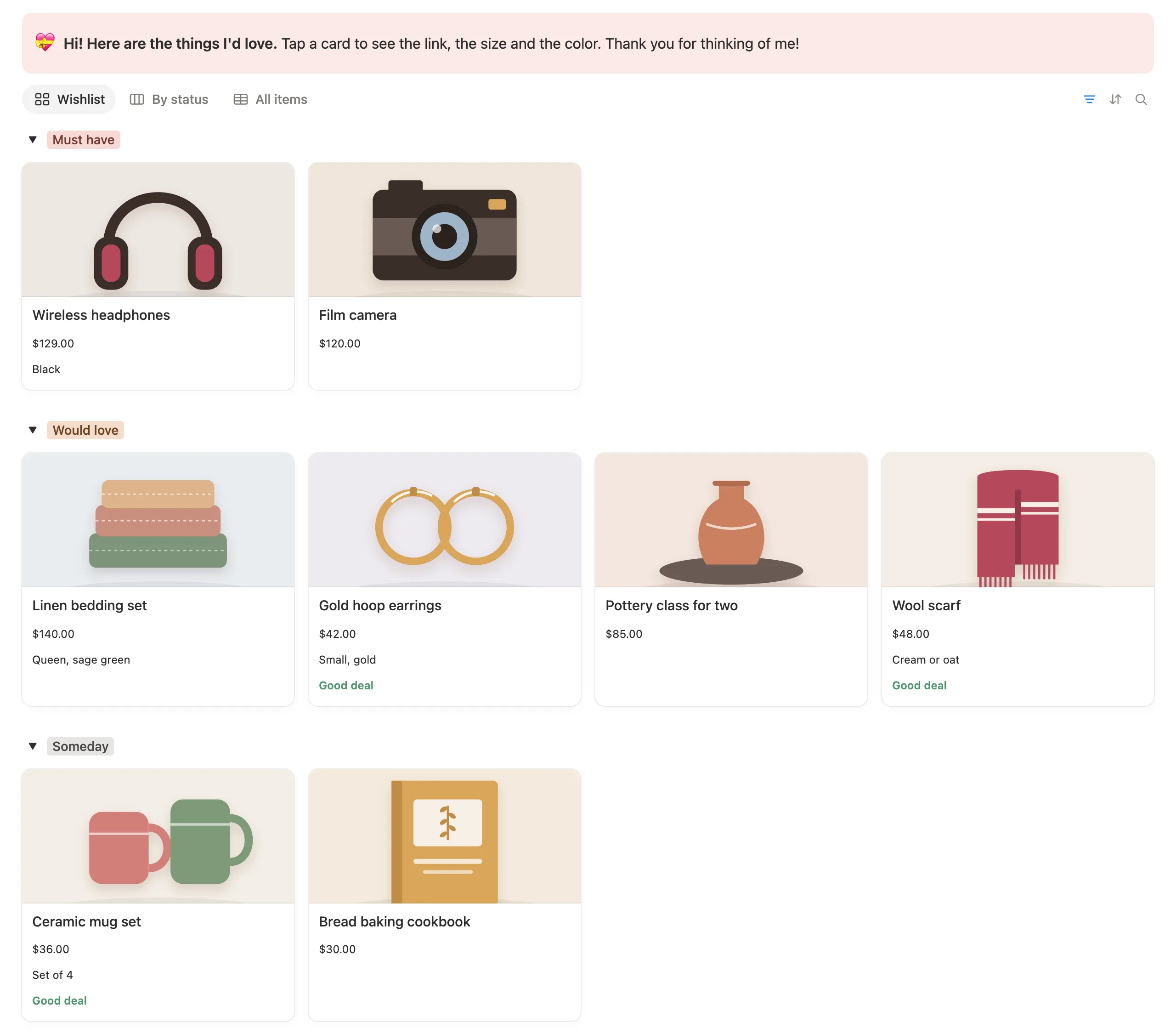
Your wishes as photo cards with their prices, sorted into Must have, Would love and Someday. A note at the top greets your family, and a tap on a card shows them the link, the size and the color.

Send your family one link to your wishlist, and plan the gifts you give on a page only you can see.
$5 One-time paymentInstant access

Magnet Creative Recommended Creator on Notion



Mom
FamilyBirthday in 142 days
Gifts
| Gift | Status | Price |
|---|---|---|
| Cozy cardigan | Ordered | $68.00 |
| Herb garden kit | $35.00 |
Ordered, Wrapped and Given count as spent.
Adding a wish, sharing your list, the gift board, budgets and Christmas, filmed in the real template.

Before building it, we went through the most copied wishlist and gift templates for Notion and read their reviews. Most are either a wishlist or a gift planner, and the ones that do both keep everything on one page, so sharing your list can give the gifts away. These are the parts we changed.
My Wishlist sits on a page of its own. Publish it and your family sees your list, while the gifts you’re planning for them stay on a page you never share.
Mom, Dad, Christmas: each gets a budget with what’s spent, what’s planned and what’s left, and it updates as gifts move to Ordered.
Give an item a target price. When the price you type meets it, the card says Good deal.
Birthdays count down on each person’s card and dates marked Every year roll on by themselves, so it works in March as well as December.
We set it up from a fresh copy, the way you’ll get it: cleared the samples, added items, a person and a gift, then moved the gift to Ordered to watch the budget change. Last, we published My Wishlist and opened the link signed out to make sure only the wishlist shows.
The main page opens on your wishlist, what’s coming up and the people you buy for. Behind it are two pages: My Wishlist, which you share, and Gift Tracker, which stays with you.
Your wishes as photo cards with their prices, sorted into Must have, Would love and Someday. A note at the top greets your family, and a tap on a card shows them the link, the size and the color.
Each item keeps its link, store, size or color, category and notes. Waiting for a sale? Add a Target price, and once the price you type meets it, the card says Good deal.

Gift ideas for everyone you buy for, moving from Idea to To buy, Ordered, Wrapped and Given, with a total over each column. The Shopping list tab shows only what you still need to buy.

Set a yearly budget for someone and their page keeps count: spent so far, still planned and how much is left, with a bar that fills up. A gift counts as spent once it’s Ordered. Their sizes and the things they like are right there when you shop.

Christmas and Valentine’s Day come with the template, each with its own budget and gift list. Add an anniversary or any other date, tick Every year, and the countdown moves on to next year by itself.

The main page lists what’s coming up with its countdown and budget, and gives each person a card with the days to their birthday and the gifts you have in mind.

Tabs in Gift Tracker for planning, shopping and looking back.
Nine sample items with their own drawings, plus people and gifts. One button hides them all.
Prices show in dollars. Switch each money column to your own currency in a few clicks.
Add the main page to Favorites in the Notion app and your lists are one tap away.
Five short steps inside your copy, with pictures of where to click.
See something you’d love? Click + Add to my wishlist and paste the link.
Think of a gift for someone? Click + Add gift idea so it’s there when the day comes.
Check Coming up for the next birthday or holiday and how much budget is left.
As you shop, move each gift along. The person’s bar fills as you go.
Do this once. It’s easiest on a computer.
Buy it on the Notion Marketplace and add it to your workspace when Notion asks. A free Notion account is enough.
Open Start here and click Clear sample data. The sample items, people and gifts disappear from every page. Christmas and Valentine’s Day stay, with example budgets you can change.
On the main page, click + Add to my wishlist. Type the name and price, paste the link, pick a priority and add a photo.

Open My Wishlist, click Share, then Publish. Copy the link and send it to your family. Share only this page, never the main page.

Click + Add person. Type their name and birthday, then set a budget for the year.

Click + Add gift idea, pick who it’s for and the occasion, and type the price. Move it along as you shop.

Spent and Left count this year’s gifts and start fresh every January, so any month is a good time to begin.
Yes. It’s built on databases, formulas and buttons, and the free plan has all three.
No, as long as you publish only My Wishlist. Gift Tracker is a separate page that stays private. We checked this by opening a published list while signed out.
No. The link opens in any browser, on a phone or a computer.
No. The shared list is view only. To avoid two people buying the same thing, ask one person to keep track.
Yes. Make a copy of the My Wishlist page, clear out the items that came with it, give it your child’s name and publish that copy separately.
No. Birthdays live on each person, Valentine’s Day is already there, and you can add anniversaries or any other date.
No. Prices are the ones you type, which means any store works. Good deal simply checks your price against the target you set.
The new year’s gifts start a fresh count for Spent and Left. Budgets stay as they are, and Every year dates jump ahead once they’ve passed.
Yes. Click the name of a money column, choose Edit property, then set Number format to your currency. Start here names every column to change.
From the Notion Marketplace, Notion adds it to your workspace right away. From Etsy, you download a PDF with the template link, open it and click Duplicate.
Email us at hello@magnetcreativestudio.com with the template name and what you see, and we’ll help you get it working.
| Database | What it holds |
|---|---|
| Wishlist | One page per item with photo, price, link, store, size or color, priority, status and target price. It lives inside My Wishlist, so it’s the only one that gets shared. |
| Gifts | One page per gift, linked to who it’s for and the occasion, with its status, price and where to buy it. |
| People | Relationship, birthday, budget, likes and sizes. Spent and Planned add up their gifts. |
| Occasions | Christmas, Valentine’s Day and your own dates, each with a budget and the gifts linked to it. |
Pay once, clear the samples and add the first thing you’d love.
$5 One-time paymentInstant access
